
Manage Staff Members in Truebooker
Admin > Truebooker > Staff Member
TrueBooker provides the ability to manage staff members for your business. To activate this feature, go to Admin > TrueBooker > Settings > General Settings. In the option “Do you have staff?”, select Yes to enable the staff members functionality on your website.

Once the staff feature is activated, a “Staff Members” page will appear in TrueBooker. This page displays all essential information about your staff members. From here, you can add new staff, edit existing records, delete staff, and manage each staff member’s working hours.
List Staff Member
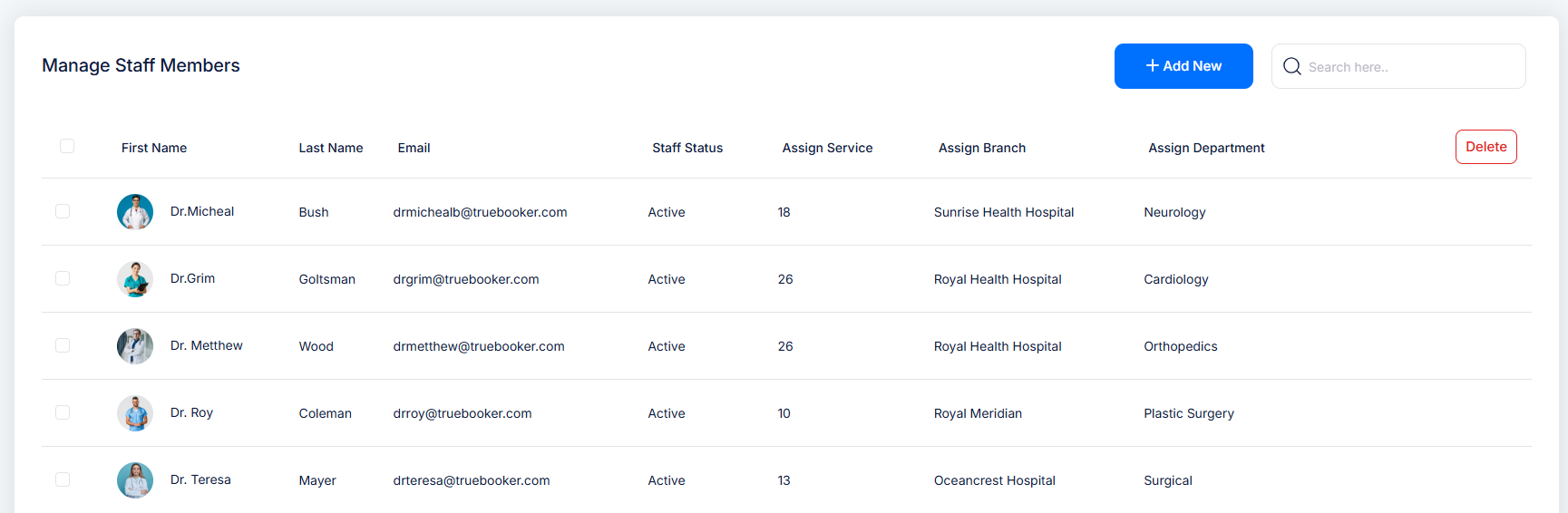
This page provides a clear overview of all staff members in your Truebooker system. For each staff member, you can view:
🖼 Avatar – Profile image of the staff member.
🧍 First Name & Last Name – Full name for easy identification.
📧 Email Address – Registered contact email.
🛠 Assigned Services – Number of services linked to this staff member.
🏢 Assigned Branch – Visible only if enabled from General Settings → Branch Module.
🗂 Assigned Department – Visible only if enabled from General Settings → Department Module.
Action Buttons:
✏ Edit – Update staff details.
🗑 Delete – Remove the staff member from the system.
⏰ Manage Working Hours – Set or adjust the working schedule for this staff member.
1️⃣ Edit Staff Member

When you click the Edit icon beside a staff row, a page will appears. This page enables you to modify all key staff details quickly and easily.
Once your edits are complete, simply click Submit to apply changes. The page then closes, and the staff list updates accordingly.
2️⃣ Delete Staff Member

To delete a specific staff member, hover over the staff row so it display the action bar. Click the Delete icon, and a confirmation dialog will appear. Select Delete in the confirmation box to permanently remove the staff.
3️⃣ Add New Staff Member
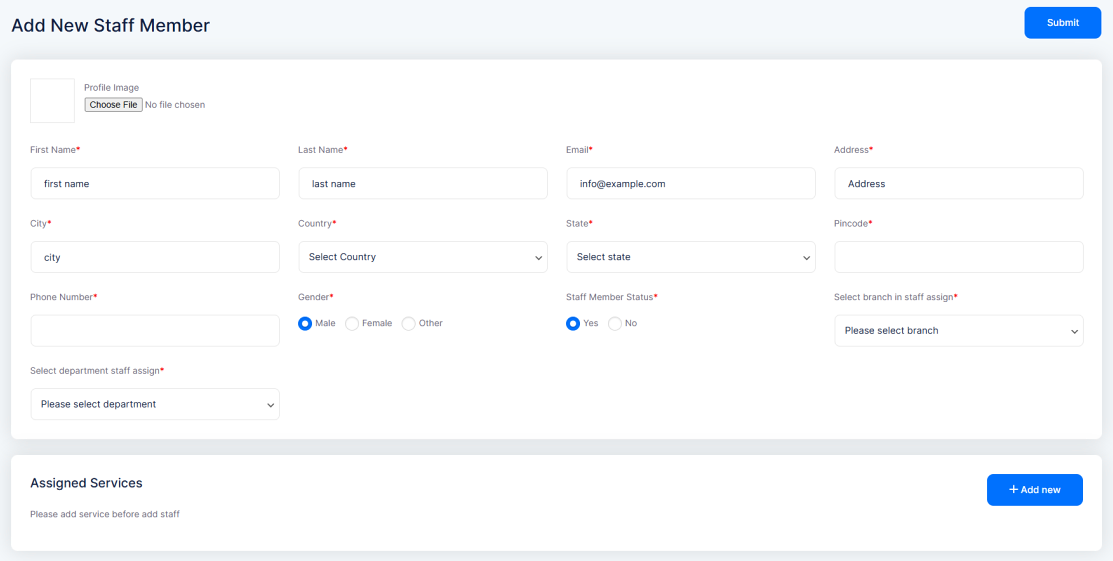
Profile Image (file upload)
Upload a profile picture for the staff member.First Name (required) – Enter the staff member’s first name.
Last Name (required) – Enter the staff member’s last name.
Email (required) – Provide the staff member’s email address.
Address Details (all required) –
Address, Country (dropdown), State (dropdown), City, *Pincode.Phone Number (required) – Provide the staff member’s contact number.
Gender (required) – Male / Female / Other.
Select Branch in Staff Assign (required – dropdown)
Choose a branch (if the Branch Module is enabled in General Settings).Select Department Staff Assign (required – dropdown)
Choose a department (if the Department Module is enabled in General Settings).Staff Member Status (required) – Yes (active) / No (inactive).
Assigned Services – Shows services assigned to this staff member.
➤ Message: “Please add service before add staff” .Submit Button (top-right) – Save the staff member details.
Staff Working Hours Management
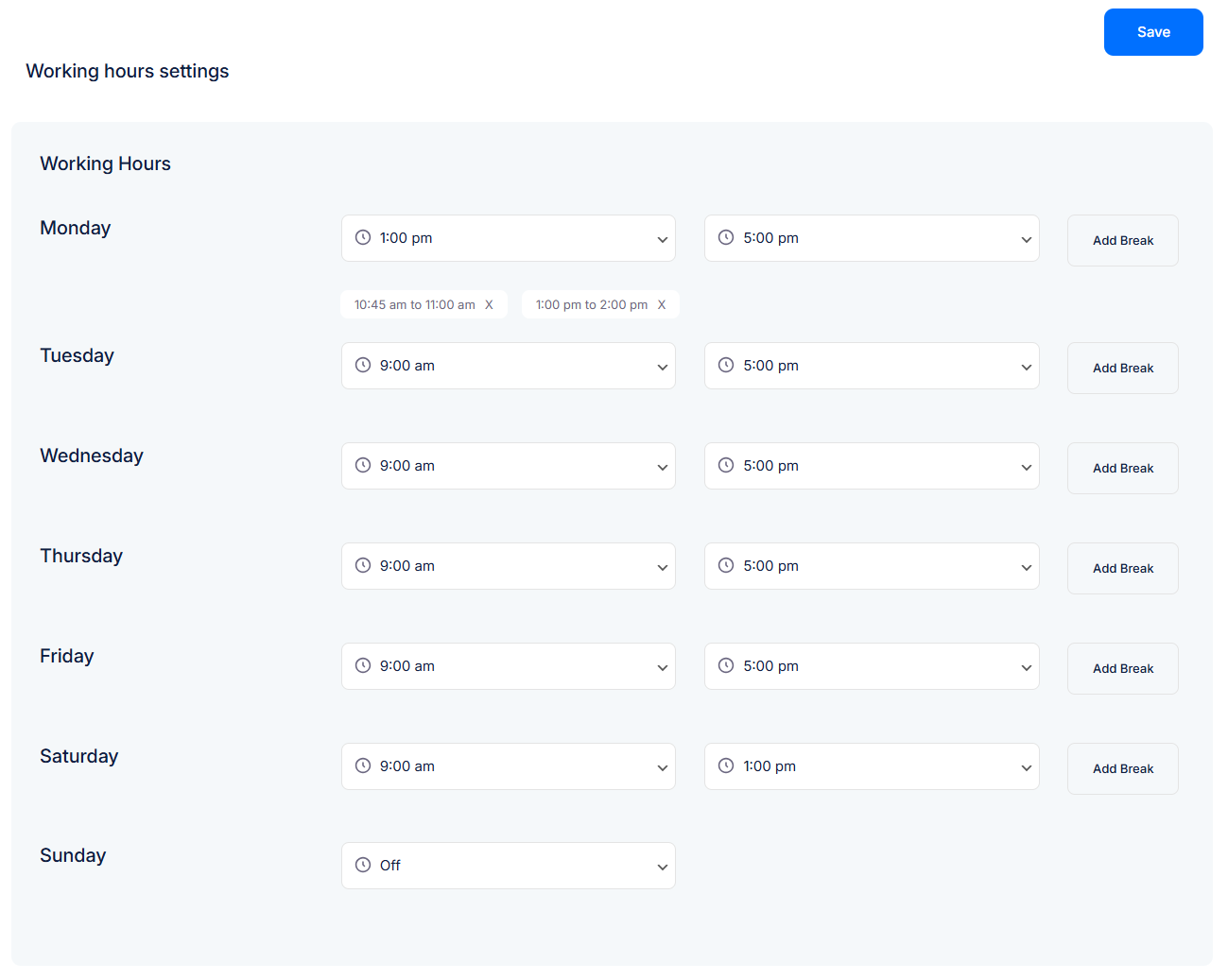
By default, working hours are managed globally from Truebooker > Settings > Working Hours.
If you would like to set custom working hours for individual staff members, simply enable the Manage Working Hours option in the staff settings.
Once enabled, the working hour settings will look like this:
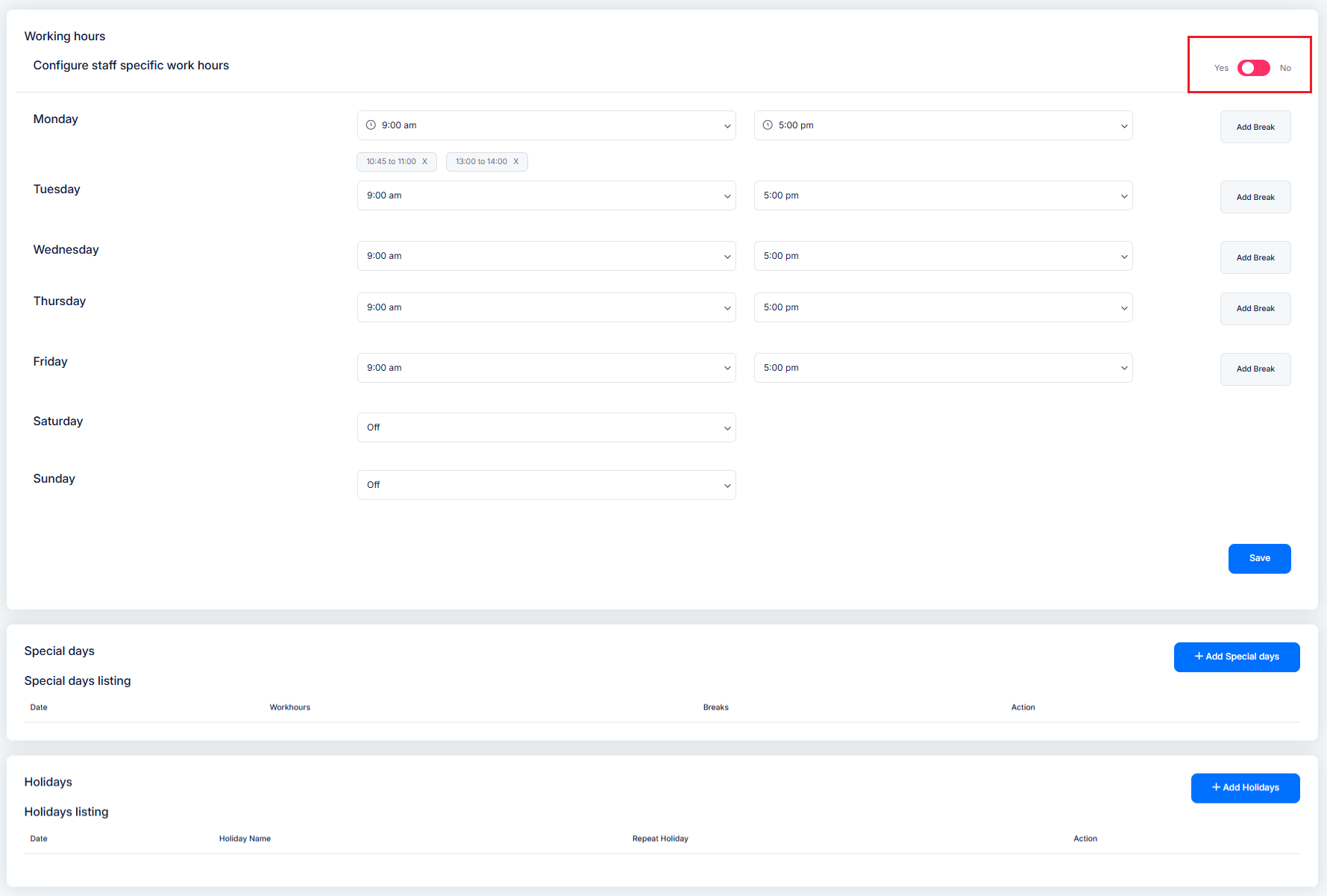
From here, you can manage:
Working Hours – Define staff availability for each day.
Break Times – Add one or multiple break slots during the day.
Off Days – Mark weekly offs or non-working days.
Special Day Working Hours – Configure unique timings for specific dates.
Holidays – Block out holidays when bookings should not be allowed.


