
Category – Organize Your Offerings 📂🛎️
Admin → Truebooker → Categories
What’s a Category?
A Category acts as a high-level grouping for services. It lets you organize services under broader headings—making navigation intuitive for both admins and users.
How you can use it:
Define core categories like Wellness, Hair, Dental, or Consultation.
Keep your service list clean and easy to browse—especially useful if you offer diverse service types.
Enhance the booking interface by allowing users to filter or browse by category.
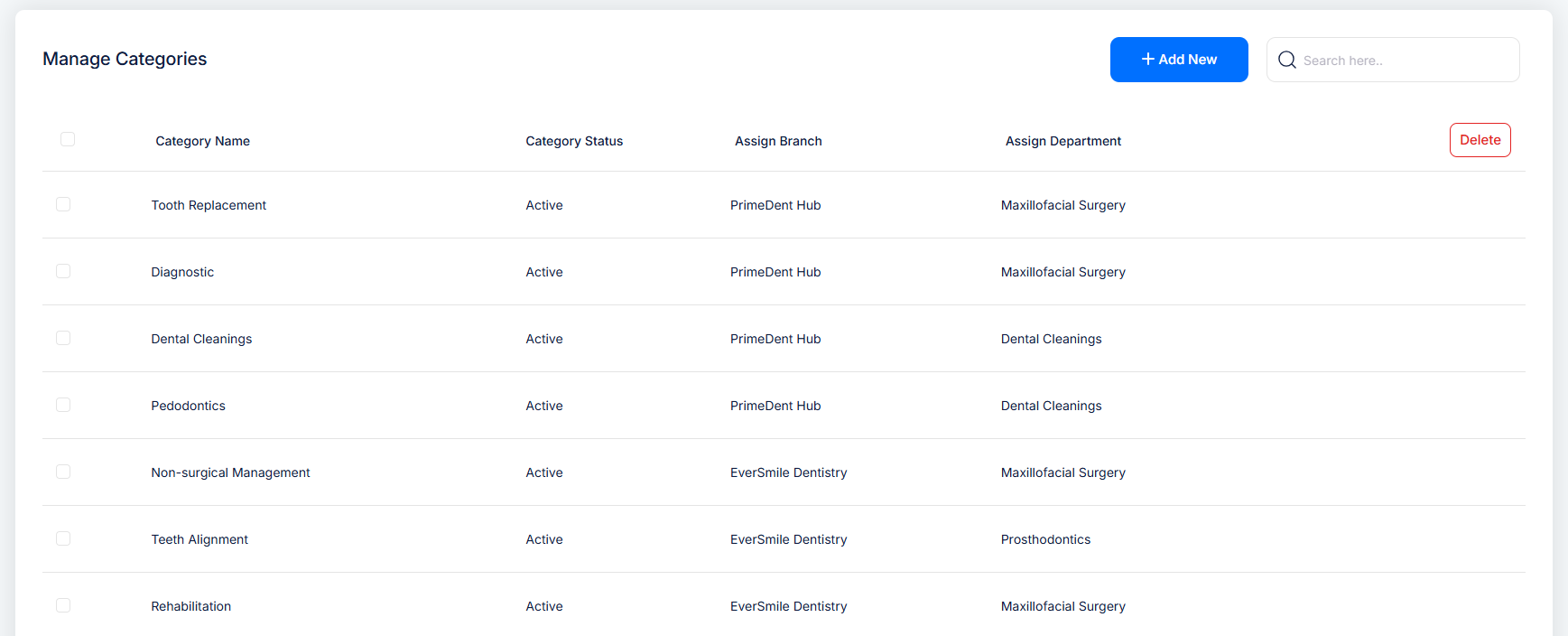
This page presents a full table listing all your categories, helping you efficiently manage and organize your service offerings.
What You Can Do Here:
See All Categories – Each row displays the category’s name, ID, and details at a glance.
Quick Actions – Use Edit (✏️) or Delete (🗑️) icons beside each category for immediate updates or removal.
Branch & Department Columns – If activated under
Truebooker > Settings > General Settings > Store Settings, you’ll see additional columns specifying which Branch and Department each category belongs to.
How to Add a New Category
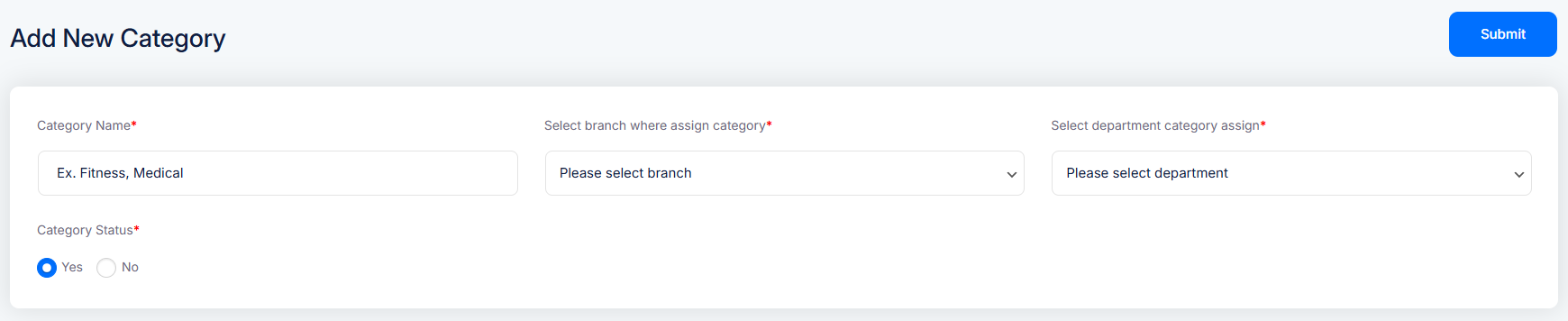
Follow these simple steps to create a new category:
Go to Admin → Truebooker → Categories.
You’ll see your existing categories listed in a table.
Locate the “Add New Category” field—usually positioned at the top or side.
Enter your Category Name (e.g., “Yoga,” “Dental Care,” etc.).
Click “Submit” to save it.
The new category appears immediately in your list and becomes available when setting up services.


