
Staff Member Settings – Truebooker
Truebooker > Setting > Staff Member Settings
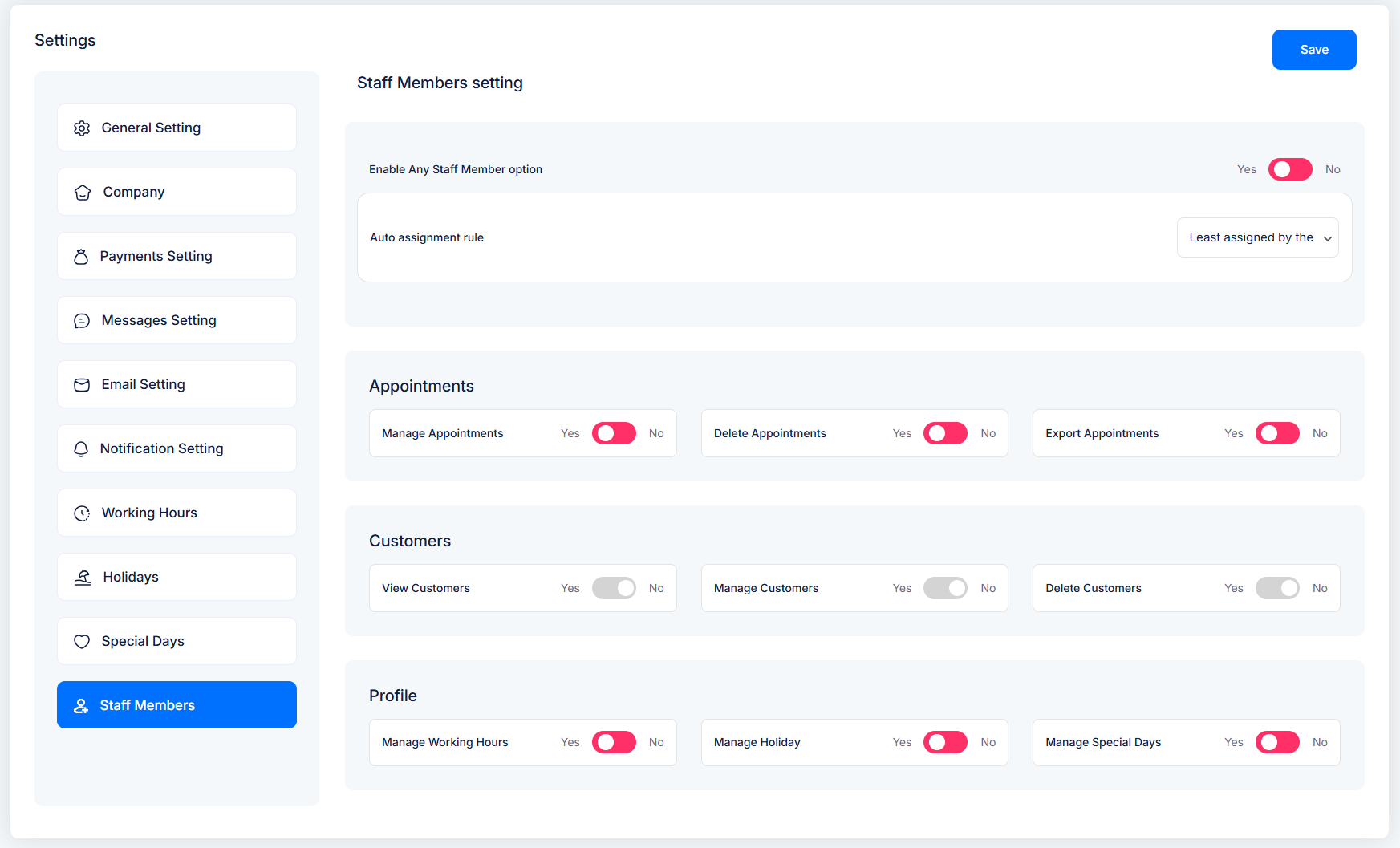
The Staff Member Settings allow you to control what your staff members can or cannot do inside the booking system. This ensures better management of appointments, customers, working hours, holidays, and special days.
General Options
When customers select “Any Staff Member” during booking, the system will automatically assign a staff member based on the rule you configure.
Available Options
Least assigned by the day
Assigns the booking to the staff member with the fewest appointments for the current day.
✅ Example: In a clinic, if Doctor A has 2 appointments today and Doctor B has none, the system will assign the booking to Doctor B.
Most assigned by the day
Assigns the booking to the staff member with the most appointments for the current day.
✅ Example: In a fitness center, if Trainer A already has 5 bookings and Trainer B has 1, the new booking goes to Trainer A (useful if one staff is more popular or experienced).
Least assigned by the week
Assigns to the staff member with the fewest total appointments in the current week.
✅ Example: In a hospital, if Nurse A has 10 bookings this week and Nurse B has 4, the system will assign to Nurse B to balance the workload.
Most assigned by the week
Assigns to the staff member with the most total appointments in the current week.
✅ Example: A spa may want their most popular therapist to handle more bookings, so the system keeps assigning to the busiest therapist.
Most expensive
Assigns to the staff member with the highest service cost/price.
✅ Example: In a salon, if Stylist A charges $100 and Stylist B charges $50, the system assigns new bookings to Stylist A first (increasing revenue).
Least expensive
Assigns to the staff member with the lowest service cost/price.
✅ Example: In a dental clinic, if Doctor A charges $200 and Doctor B charges $100, the system assigns to Doctor B (helpful when customers prefer affordable options).
Appointment Permissions
Manage Appointments → Staff can view and update customer bookings.
Delete Appointments → Staff can cancel/remove appointments.
Export Appointments → Staff can export appointment lists for reports or record-keeping.
Example: A clinic’s receptionist can manage and export daily appointment records for doctors.
Customer Permissions
View Customers → Staff can see the customer list.
Manage Customers → Staff can add/edit customer details.
Delete Customers → Staff can remove a customer profile if needed.
Example: A gym trainer can view and update client details (like contact info or membership type).
Profile & Working Hours Permissions
Manage Working Hours → Staff can set their own availability (start/end times).
Manage Holiday → Staff can mark holidays or non-working days.
Manage Special Days → Staff can add special working days (e.g., festivals, events, seasonal schedules).
Example: A spa therapist may block off a holiday or add extended hours for a Valentine’s Day special package.
✅ Note:
If any of these permissions are disabled, the staff member will not have access to that feature. This gives the admin full control over who can manage what inside the system.
👉 Use Staff Member Settings to give your team the right level of access—ensuring smooth operations, better accountability, and full flexibility in managing appointments and customers.”


