
Using the Calendar View in Truebooker
The Calendar View in TrueBooker is your bird’s-eye perspective of all upcoming, current, and past bookings. Instead of scrolling through lists, you can visually see exactly when each appointment is happening, making it easier to plan your day, week, or month.
📍 Navigation Path: Go to Admin > Truebooker > Calendar to access this view.
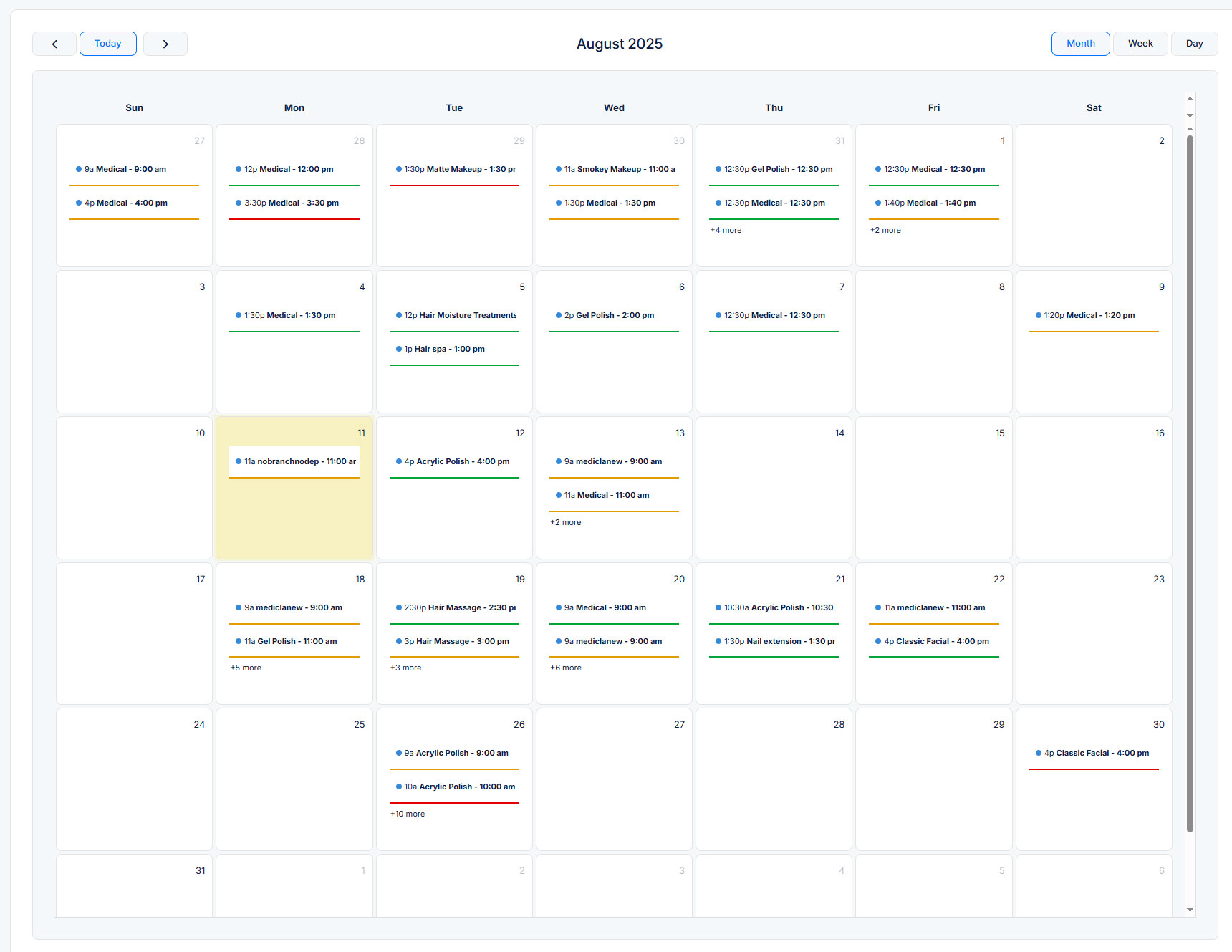
1️⃣ Switch Layout Easily
At the top of the calendar, you’ll find the Week/Month/Day toggle.
Week View – Perfect for busy schedules where you want a detailed, hour-by-hour view of each day.
Month View – Ideal for getting an overview of your full month’s bookings in one glance.
- Day View – Focus on a single day’s schedule with a detailed breakdown of every appointment and time slot.
2️⃣ See All Your Bookings at a Glance
Each booking appears as a colored block inside its scheduled date/time slot. The color helps you quickly identify the appointment status.
Click on a booking to open the full appointment details.
3️⃣ Navigate Through Time
Use the back and forward arrows to move quickly between weeks or months.
This makes it easy to:
Check upcoming busy days


