
Department Management in Truebooker
In Truebooker, a Department represents a specific division or section within a branch.
It allows you to group staff and services under the correct branch location for better organization and management.
How you can use it:
Create departments under each branch to structure your business operations.
Store department details such as name and description.
Assign staff members and services to the correct department.
Manage department-specific schedules and booking preferences.
Easily view, edit, or delete departments through the dashboard.
📍 Navigation Path: Go to Admin > Truebooker > Department
(only visible if enabled in Truebooker > Settings > General Settings > Store Settings ).
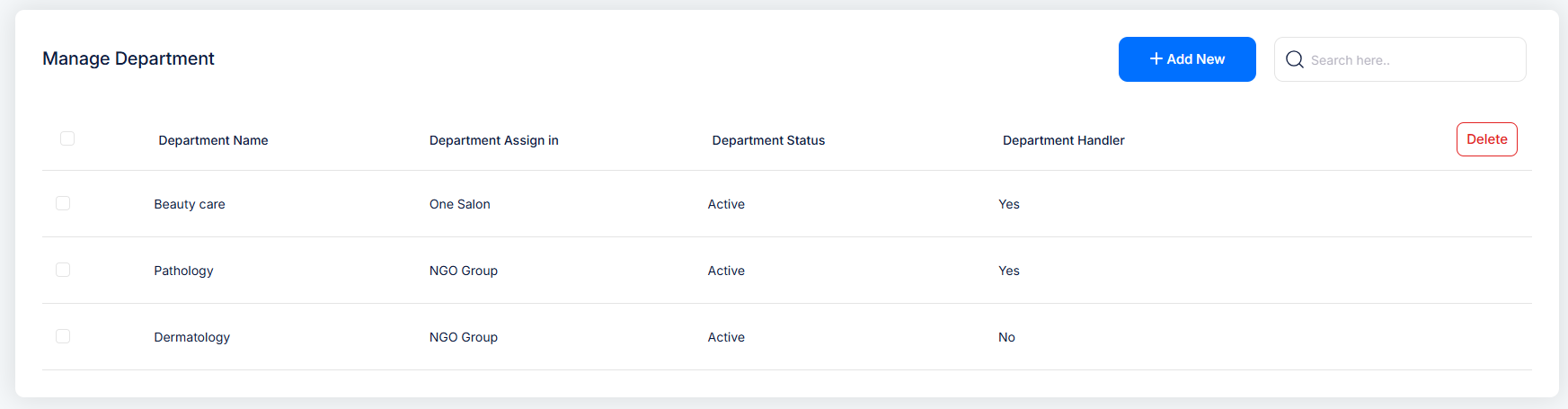
Department Module Dashboard
This screen lays out all your departments in one table. You’ll find:
Department Name
Associated Branch
Status (Active/Inactive)
Handler enabled indicator (Yes/No)
Add New Department
When you click the “Add New” button, TrueBooker opens the Add New Department form. This form helps you set up a new department with all necessary details.
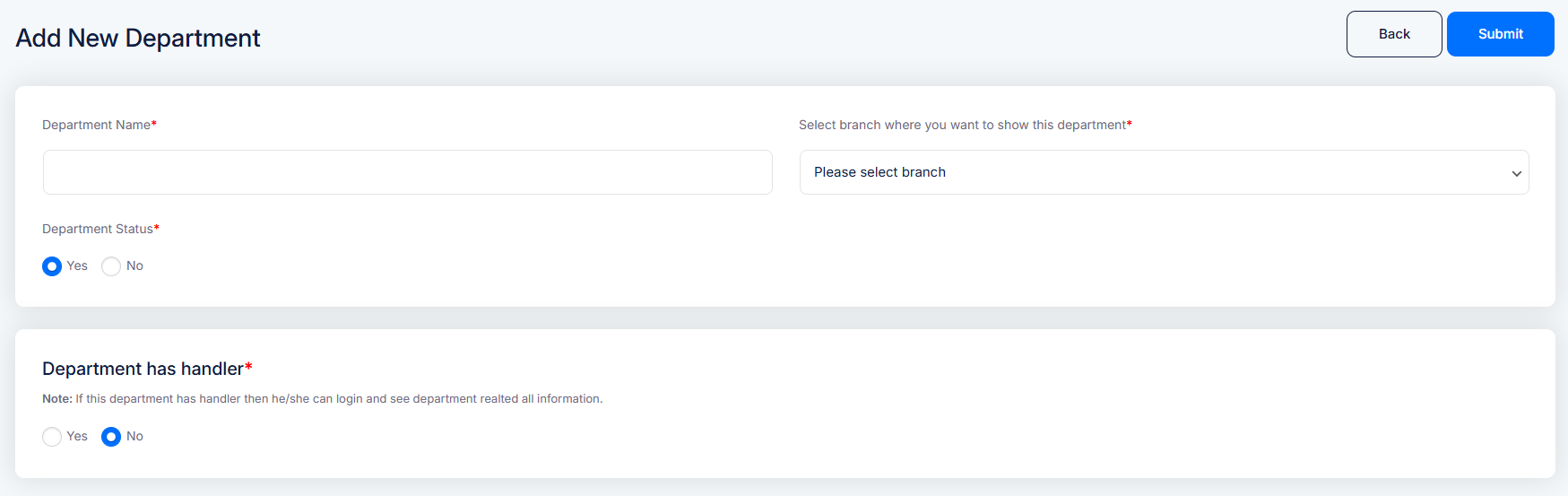
Enter the Department Name
Choose the Branch — assign this department to a specific location
Set Department Status — enable or disable it
Enable department handler – The handler can log in to the system and manage department-specific details, staff, and bookings.
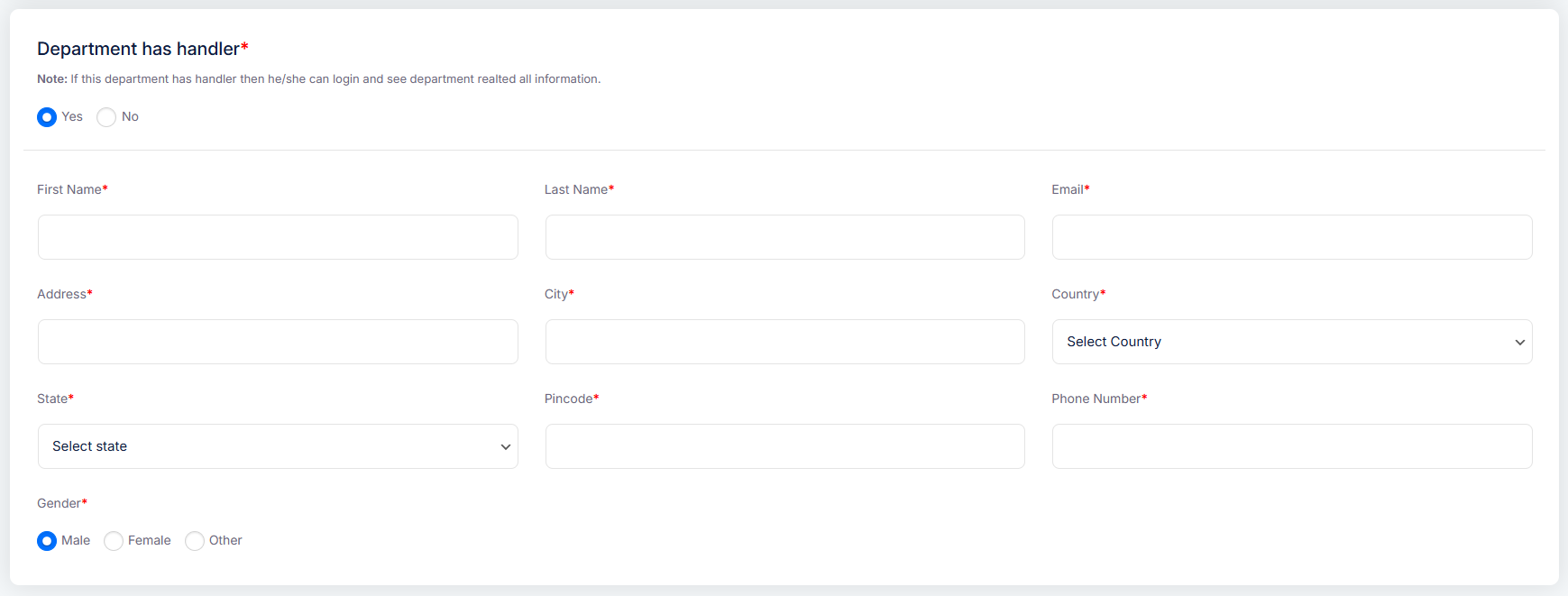
Department Handler
A Department Handler is a member assigned to manage a specific department within a branch.
They have access only to the information and features related to their assigned department.How you can use it:
The handler can log in to the system and view department-specific details, staff, and bookings.
Handlers can manage schedules, respond to bookings, and update department information


