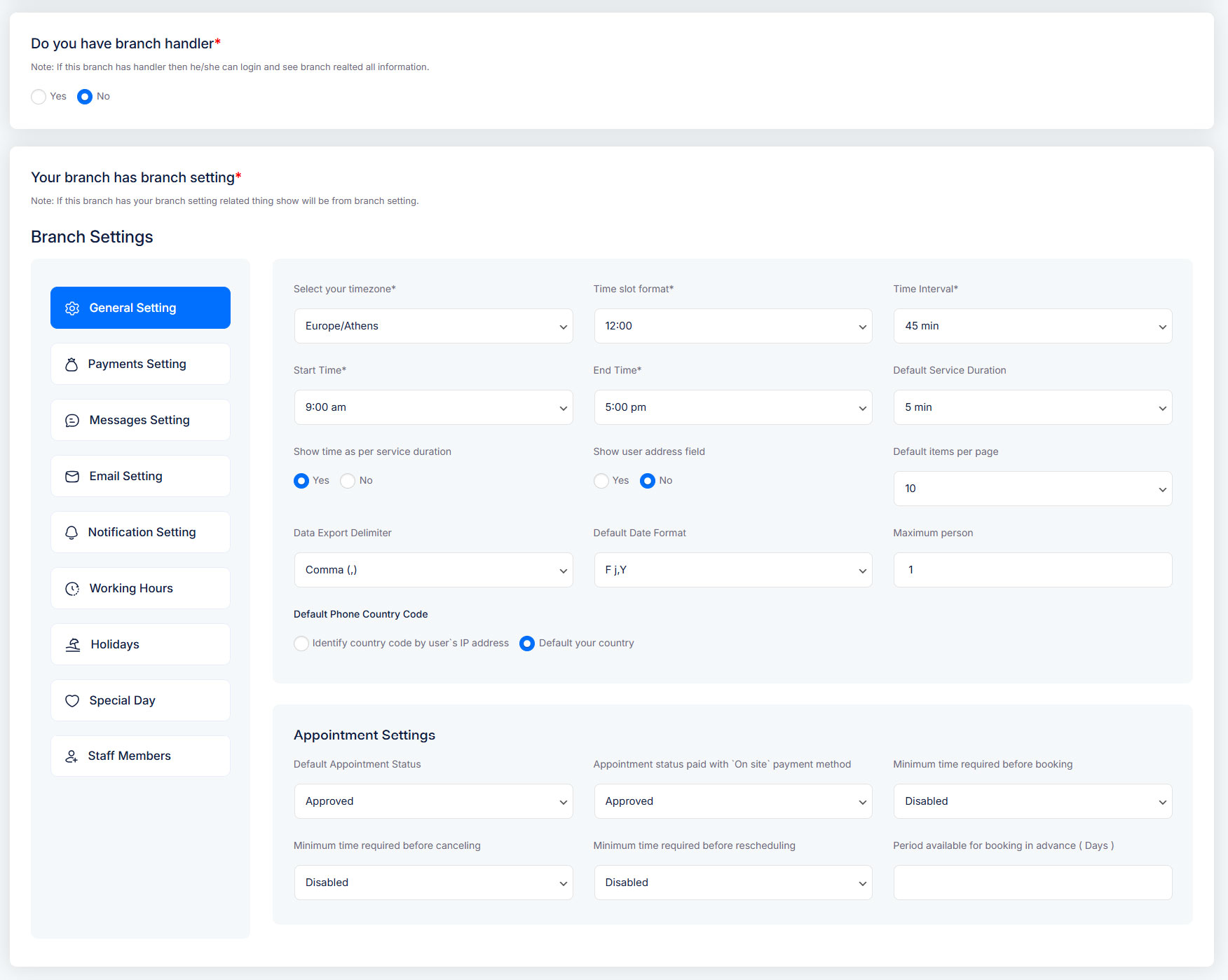
Branch Module – Organize Your Locations
In Truebooker, a Branch represents a separate business location or office where services are provided.
It allows you to manage multiple locations within one system, keeping each branch’s details, staff, and settings organized.
How you can use it:
Add branches for each physical location you operate.
Store branch-specific details like address, phone number, email, and operational settings.
Assign departments and staff to each branch.
Control branch-specific settings like working hours or booking rules.
Manage and edit branches easily through the dashboard, which lists all branches with quick actions for editing or deleting.
📍 Navigation Path: Go to Admin > Truebooker > Branch
(only visible if enabled in Truebooker > Settings > General Settings > Store Settings ).
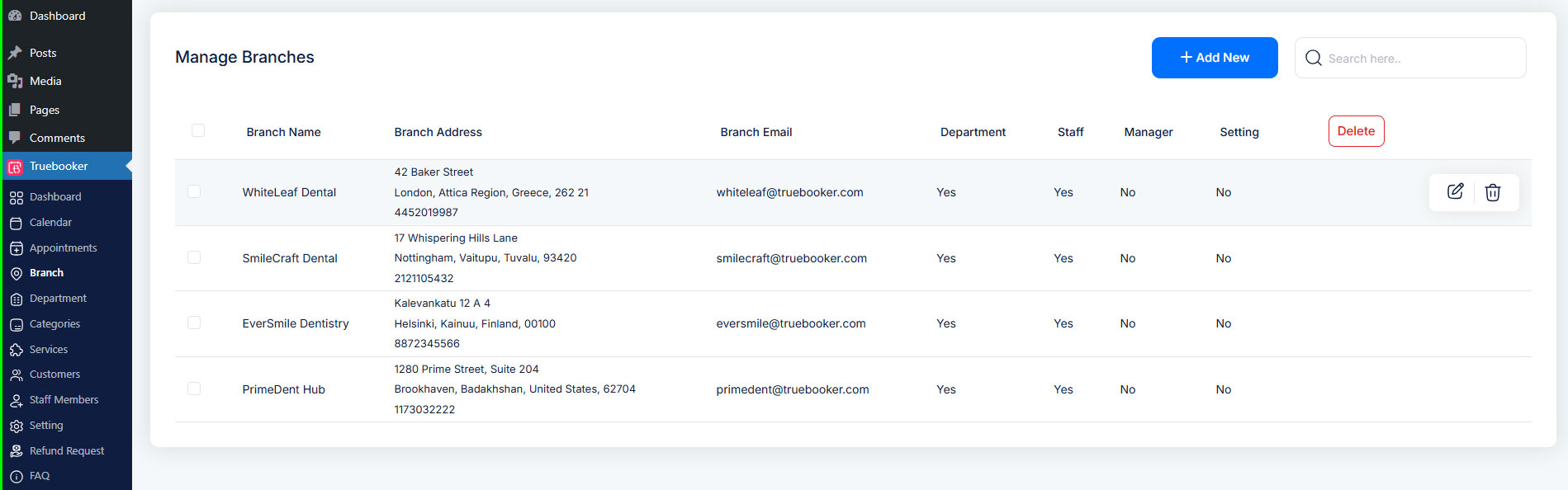
Branch Module Dashboard
This page displays a clean table listing all your branches. You’ll see:
Branch names and key details
Action buttons for editing or deleting each branch
Add New Branch
When you click the “Add New” button, TrueBooker opens the Add New Branch form. This form helps you set up a new location with all necessary details.
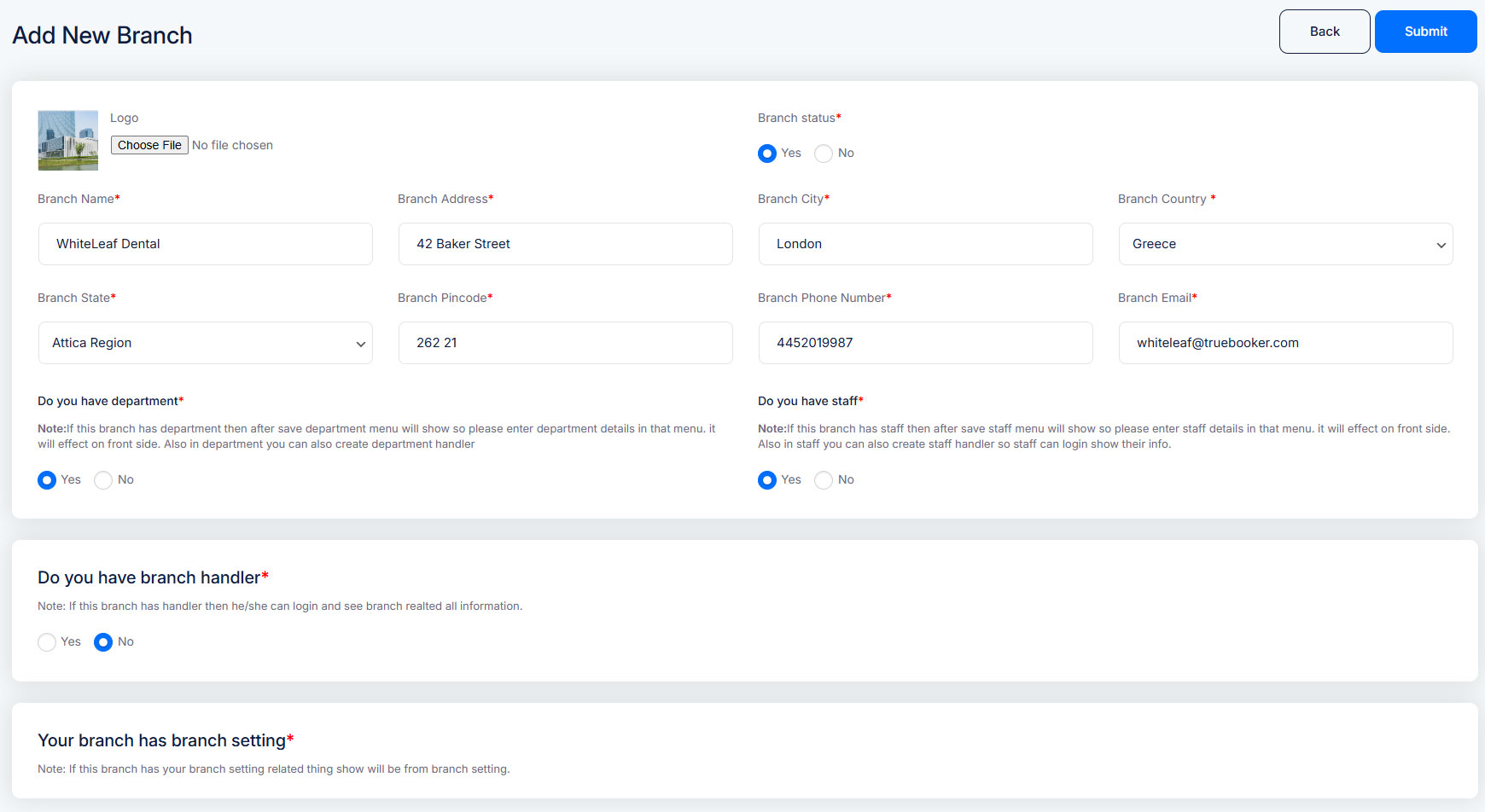
| Field Name | Short Description |
|---|---|
| Branch Image | Upload an image representing the branch. |
| Status | Set the branch as Active or Inactive. |
| Branch Name | Enter the branch’s official name. |
| Branch Address | Complete address/location of the branch. |
| State | Select the state/region of the branch. |
| Branch Pincode | Enter the branch pincode |
| Branch Phone | Primary contact number of the branch. |
| Branch Email | Email ID of the branch. |
| Do you have Department? | Select Yes to enable the Department menu for this branch. |
| Do you have Staff? | Select Yes to enable the Staff menu. |
| Do you have Branch Handler? | Assign a branch handler account who can manage branch-specific tasks and view bookings for this branch. |
| Your Branch Has Branch Setting | Toggle to enable branch-specific settings (custom options that apply only to this branch). |
Enable branch-specific settings so this branch can have its own custom configurations.