
Payment Settings – Truebooker
Admin > Truebooker > Setting > Payment Setting
This setting will enable you to configure different options for accepting payments in Truebooker.
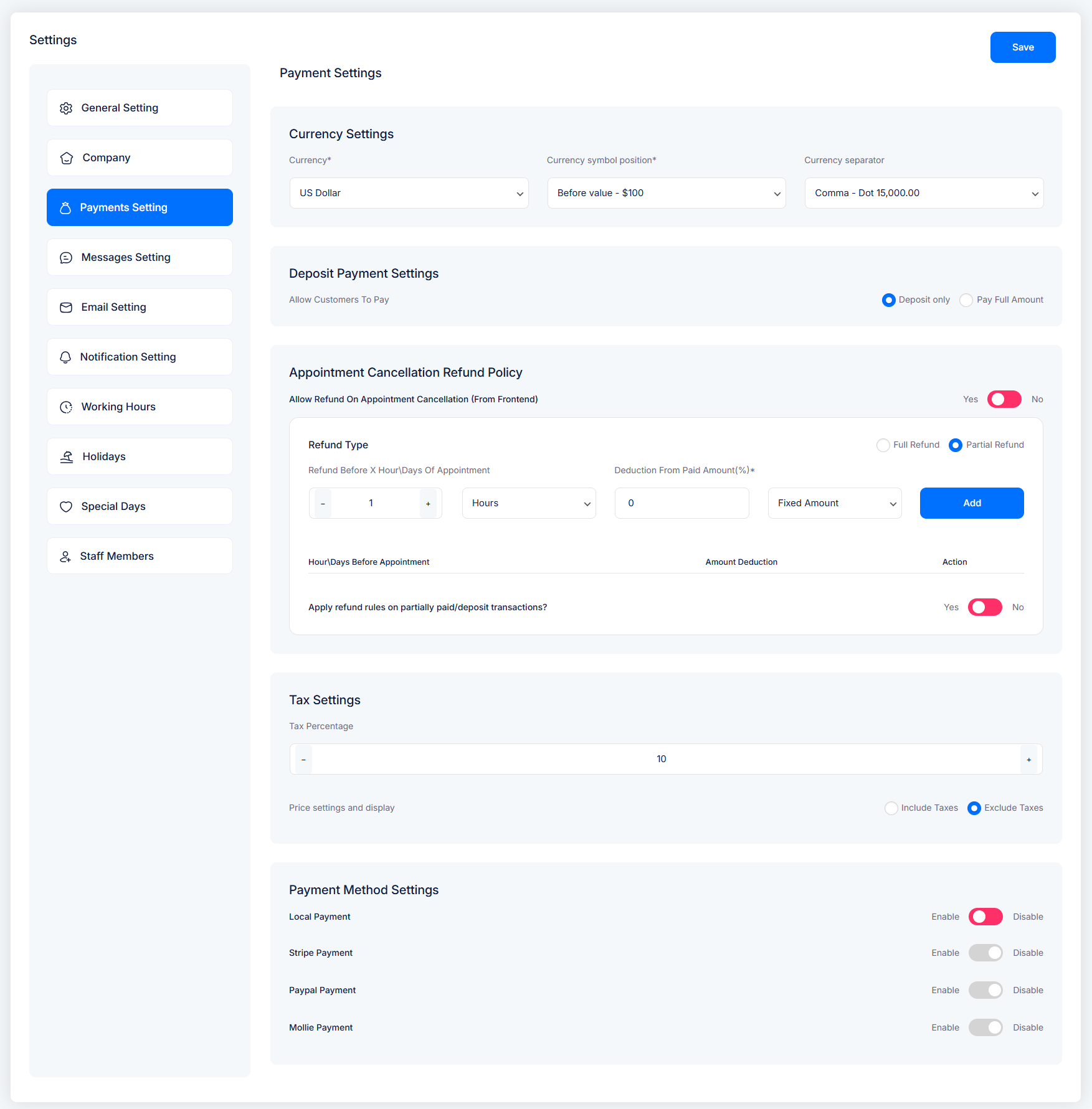
💲 Currency Settings
Currency – Select the currency for your bookings (e.g., USD, EUR, INR).
Currency Symbol Position – Choose whether the symbol appears before or after the value (e.g.,
$100or100$).Currency Separator – Define how amounts are displayed (e.g., comma, dot for thousands/decimals).
💵 Deposit Payment Settings
Deposit Only / Pay Full Amount – Allow customers to pay only a deposit amount during booking or require full payment upfront.
🔄 Appointment Cancellation Refund Policy
Allow Refund on Appointment Cancellation (from frontend) – Enable/disable refunds when a user cancels.
Refund Type – Choose between:
Full Refund
Partial Refund (deduct fixed amount or percentage).
Refund Before X Hours/Days – Define how many hours/days before the appointment a refund can be applied.
Apply Refund Rules on Deposits – Decide if refund rules should also apply to partially paid/deposit bookings.
Tax Settings
Tax Percentage – Enter the tax percentage applied to bookings.
Include/Exclude Taxes – Choose whether the tax should be included in the service price or added separately.
💳 Payment Method Settings
Enable or disable the available payment gateways:
Local Payment – Accept offline or on-site payments.
Stripe Payment – Enable Stripe for secure card payments.
PayPal Payment – Enable PayPal for instant online transactions.
Mobile Payment – Allow payments via mobile gateways (if supported).


