
Speical Days Settings – Truebooker
Truebooker > Setting > Special Days Setting
The Special Day Settings option allows you to create custom working schedules for specific dates that are different from your regular working hours. This is useful when you want to extend, reduce, or completely change availability on certain days without modifying your default weekly schedule.
➤ What is a Special Day?
A Special Day is a particular date (or range of dates) where your business hours differ from the normal working hours.
For example:
Extending hours during festive seasons or sales.
Reducing hours for half-day work.
Adding extra working hours on weekends.
➤ How to Set a Special Day
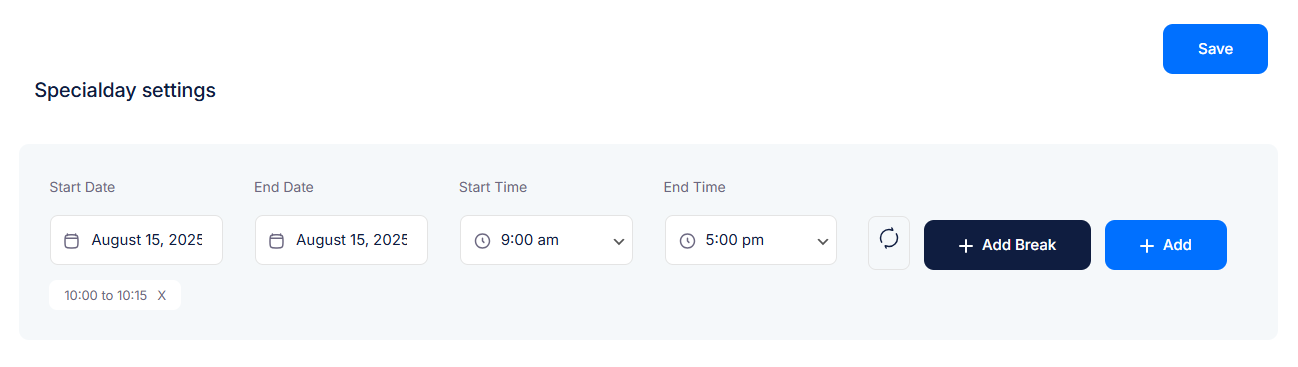
Go to Special Day Settings.
Select the Start Date and End Date.
You can choose the same date for a single-day schedule.
Or select multiple dates to apply the same special hours.
Set the Start Time and End Time for the special day.
(Optional) Click Add Break to include break periods (e.g., Lunch break from 1:00 pm to 2:00 pm).
Click Add and then Save to confirm.
Example: Special Day Settings in a Hospital
Hospitals and clinics often follow regular working hours but may need to adjust timings on certain days due to public holidays, special medical camps, or emergency services.
➤ How a Hospital Can Use Special Days
Medical Camp / Health Checkup Day
Regular Hours: 9:00 am – 5:00 pm
Special Day: 15th August → Extended Hours: 8:00 am – 8:00 pm to manage extra patients.
Break: 1:00 pm – 2:00 pm (Lunch break for staff).
Festival Day (Half-Day Service)
Regular Hours: 9:00 am – 5:00 pm
Special Day: Diwali Eve (24th October) → Reduced Hours: 9:00 am – 1:00 pm.
Weekend Emergency Service
Regular Hours: Closed on Sundays
Special Day: Sunday, 5th November → Open 10:00 am – 4:00 pm for emergency OPD.
Specialist Availability
Example: A Cardiologist visiting only on December 20th → Special Day created for that date (10:00 am – 3:00 pm).
✅ Special Day Settings help businesses stay flexible and customer-friendly by adjusting working hours for holidays, events, promotions, and special occasions—ensuring smooth operations and better customer satisfaction.


