
Working Hour Settings – Truebooker
Truebooker > Setting > Working Hour Setting
The Working Hours section allows you to define the availability of your business or staff members for bookings. These settings ensure that customers can only make appointments during the times you are available.
What are Working Hours?
Working hours are the time slots when your services are available. For example, you can set Monday to Friday from 9:00 AM to 5:00 PM as your working hours.
👉 Customers will only be able to book appointments during these defined times.
What is a Break?
Breaks are specific periods within your working hours when you are unavailable. For example:
If your working hours are 9:00 AM – 5:00 PM,
You can add a Lunch Break from 1:00 PM – 2:00 PM.
During break times, the booking system will automatically block slots so customers cannot make appointments.
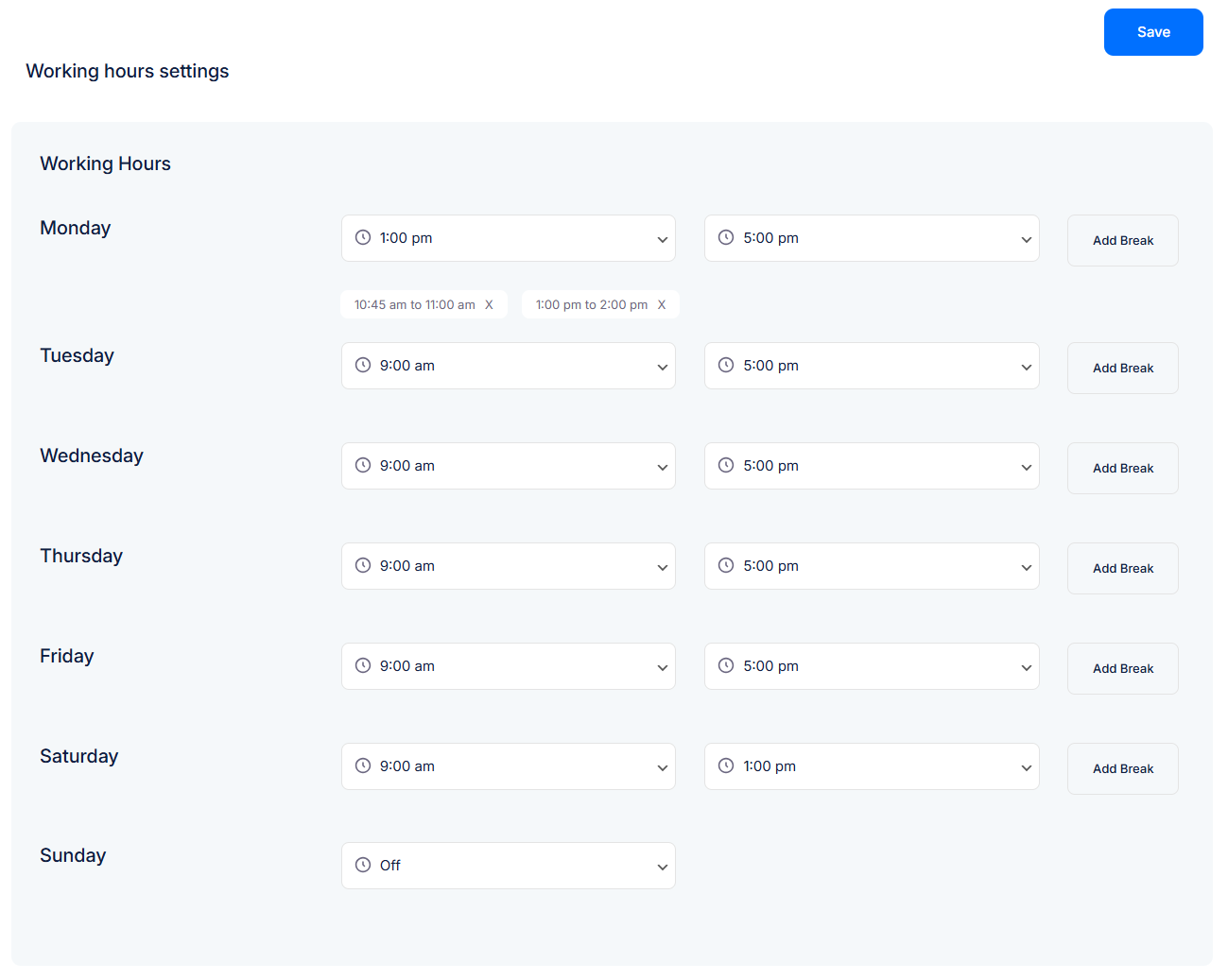
This section allows you to configure the weekly schedule for your services or staff members. You can define start and end times for each day, and also add break periods when appointments should not be booked.
By default, the Start Time and End Time are set from Truebooker > Settings > General Settings, but you can customize them for each staff member or service.
Options Available
Day Selector (Monday to Sunday)
Each day of the week can be customized with specific working hours.Example:
Monday → 1:00 PM to 5:00 PM
Tuesday to Friday → 9:00 AM to 5:00 PM
Saturday → 9:00 AM to 1:00 PM
Sunday → Off (No bookings allowed)
Start & End Time
Set the working hours for each day by choosing a start time and end time from the dropdown.
Add Break
The Add Break option allows you to specify times during the working day when no bookings are allowed.
Example:
Monday → Working hours: 1:00 PM – 5:00 PM
Breaks: 10:45 AM – 11:00 AM, 1:00 PM – 2:00 PM
Breaks are especially useful for:
Lunch hours
Short team breaks
Maintenance or admin time
Day Off
You can mark any day as Off, meaning no bookings will be available.
Example: Sunday is set to Off in the screenshot.


