Services – Streamline Your Offerings 📋
Admin → Truebooker → Services
What’s a Service?
A Service is the specific offering your business provides—like a particular treatment, consultation type, or session.
Manage Services :
The Manage Services page is where you can see and control all the services your business offers. Everything is in one place, so it’s quick and easy to make changes.
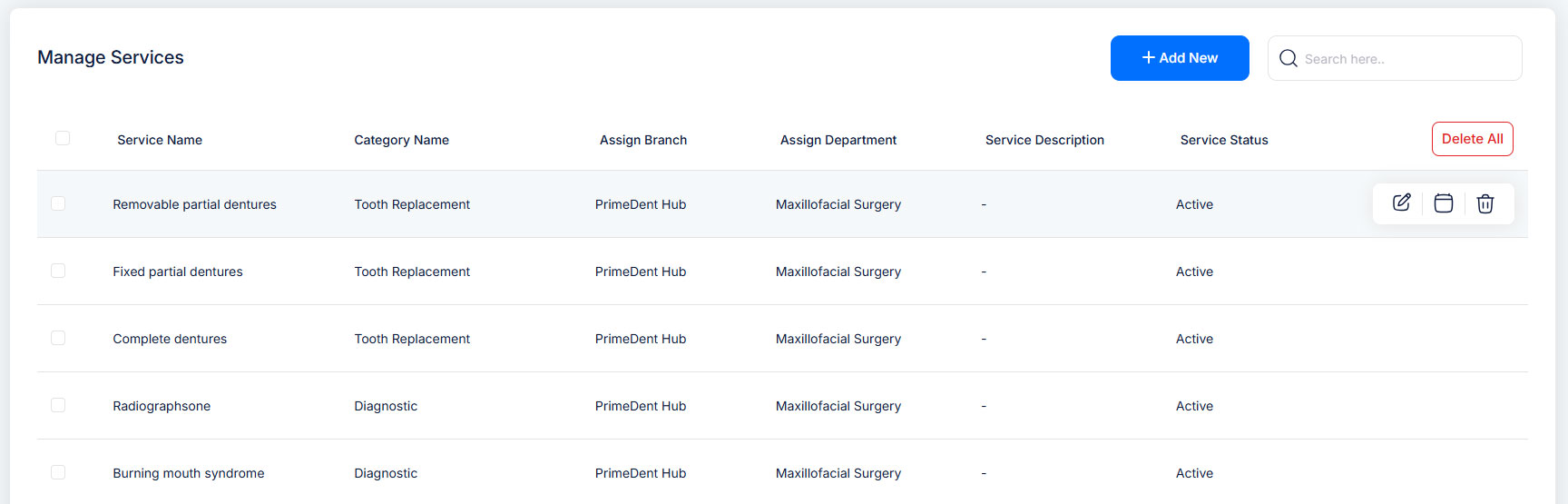
When you open the page, you’ll see a list of all your services. Each service shows:
Name – The name of the service
Category – The group the service belongs to (e.g., Hair, Spa, Consultation)
Branch Name – If branch module is enabled, you will see the branch where the service is available
Department Name – If department module is enabled, you will see the department that handles the service
Status – Shows if the service is Active (available for booking) or Inactive (hidden from customers)
From this page, you can add new services, edit services, delete services, manage working hours, search services.
Add New Service +
Admin → Truebooker → Services → Add New Service 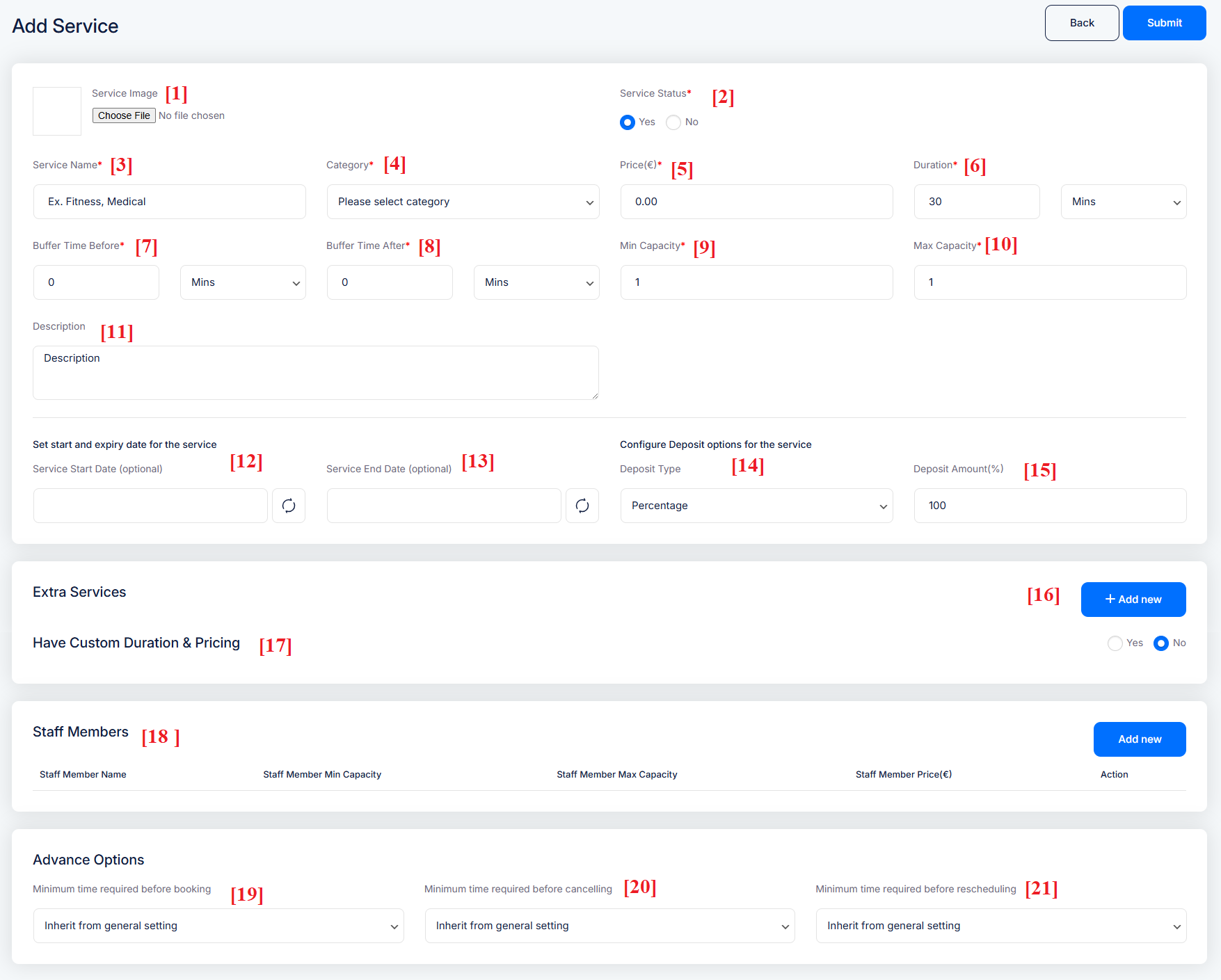
Basic Service Information
Service Image – Upload an image that visually represents your service (optional but helps customers recognize the service).
Service Status – Toggle between Yes (active) or No (inactive) to control whether this service appears for booking.
Service Name – The title of the service (e.g., Fitness Training, Medical Consultation).
Category – Select a category for the service (add/edit via TrueBooker → Categories)
Price – Enter the price for the service in your configured currency.
Duration – Set how long the service takes, including unit selection (minutes, hours, days etc.).
Capacity & Buffer Times
Buffer Time Before – Extra time before a booking starts (prep/setup time).
Buffer Time After – Extra time after a booking ends (cleanup/reset time).
Min Capacity – Minimum number of participants required for the booking.
Max Capacity – Maximum number of participants allowed.
Description & Availability
Description – Provide additional details about the service.
Service Start Date (optional) – Date from which the service becomes available.
Service End Date (optional) – Date after which the service will no longer be available.
Deposit Settings
Deposit Type – Choose how the deposit is calculated: Percentage or Fixed Amount.
Deposit Amount (%) – Set the deposit amount or percentage required for booking.
Additional Configurations
Extra Services
After configuring your main service, you can supplement it with optional extras by clicking “+ Add new” in the Extra Services section. Each extra can have its own:
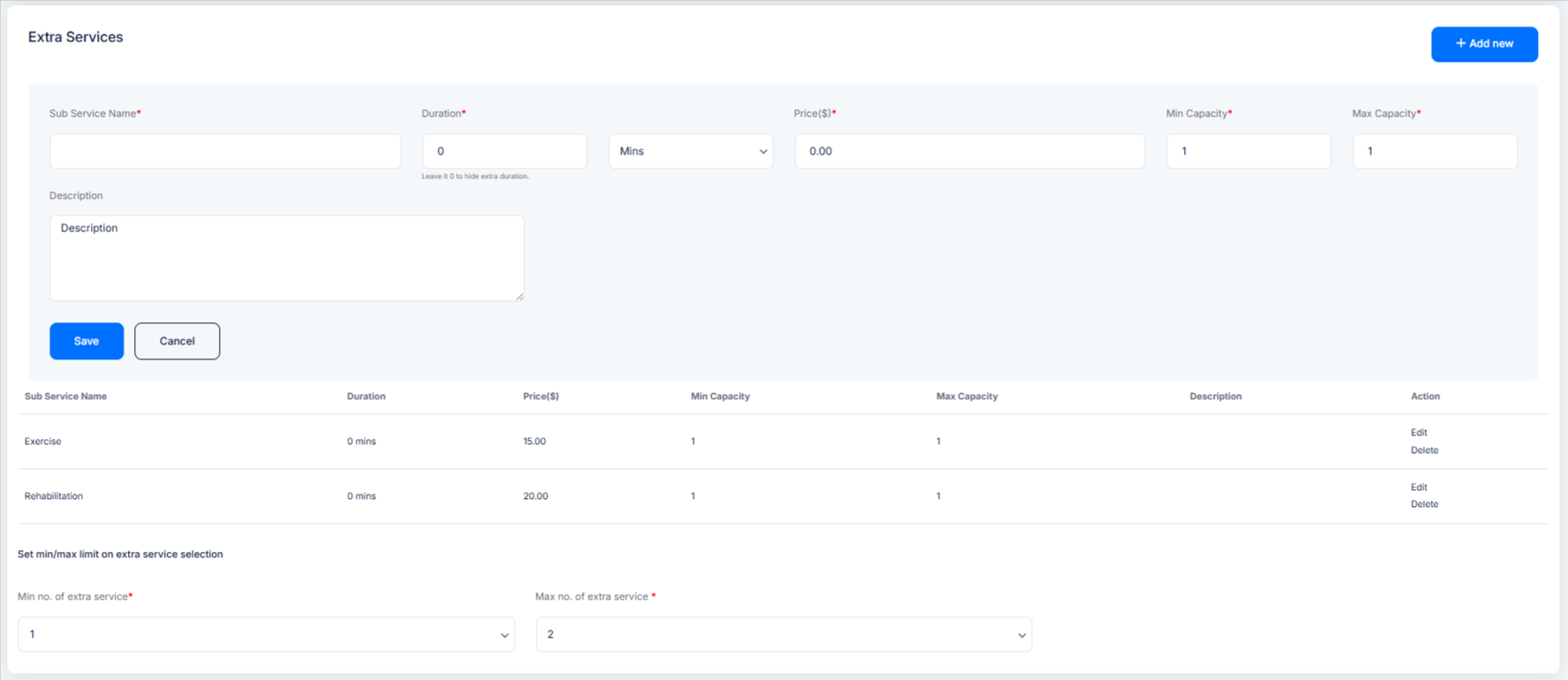
For example, if your main service is Hair Treatment, your extra services could be:
Hair Spa Treatment – Add a nourishing hair spa session for silky, healthy hair.
Premium Beard Styling – Upgrade your haircut with detailed beard shaping and grooming.
17. Have Custom Duration & Pricing – Toggle to enable different durations and prices for the this service.
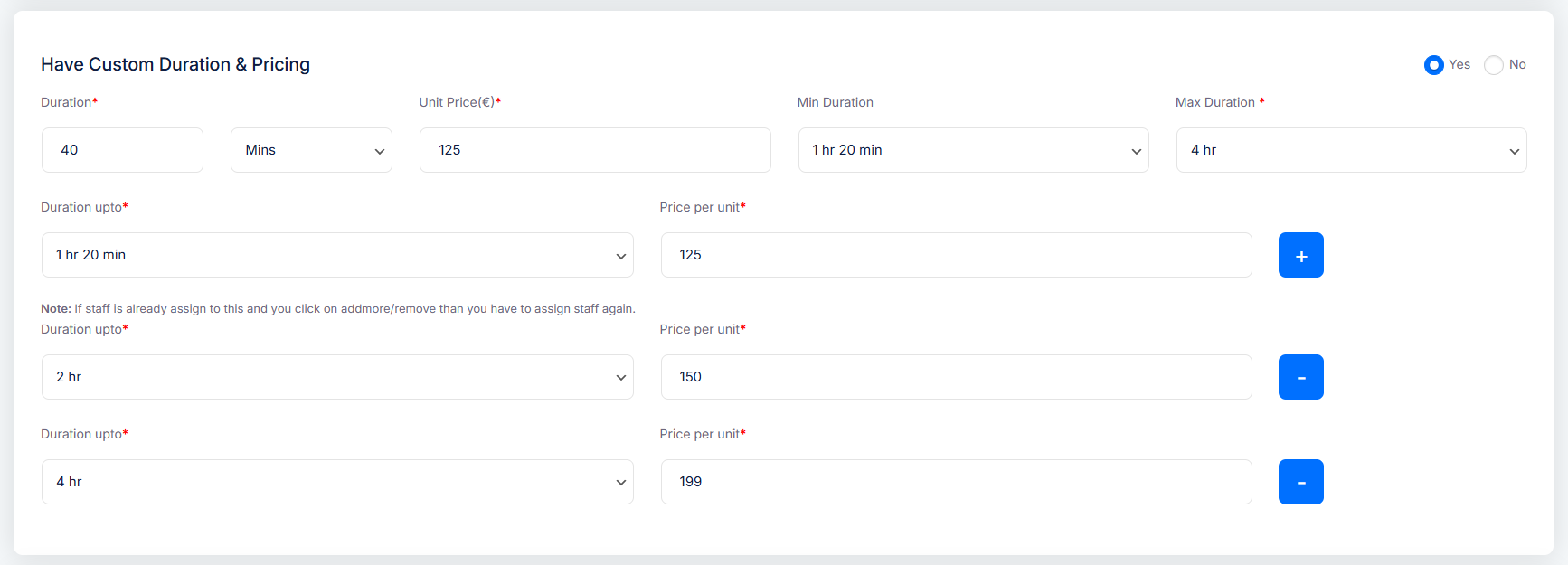
Fields:
-
Min Duration – The shortest time a customer can book (in minutes or hours).
-
Max Duration – The longest time a customer can book (in minutes or hours).
-
Unit Price – The cost for each time unit (minute or hour) booked.
Example – Duration Upto Pricing:
-
1 hour → Price per unit applies
-
1.30 hours → Price per unit applies
-
3 hours → Price per unit applies
Total Price = (Min Duration + Selected Duration) × Unit Price Staff Assignments
Staff Members – This section allows you to assign staff members to a this service, along with setting their capacity and pricing. Here’s how it typically appears:
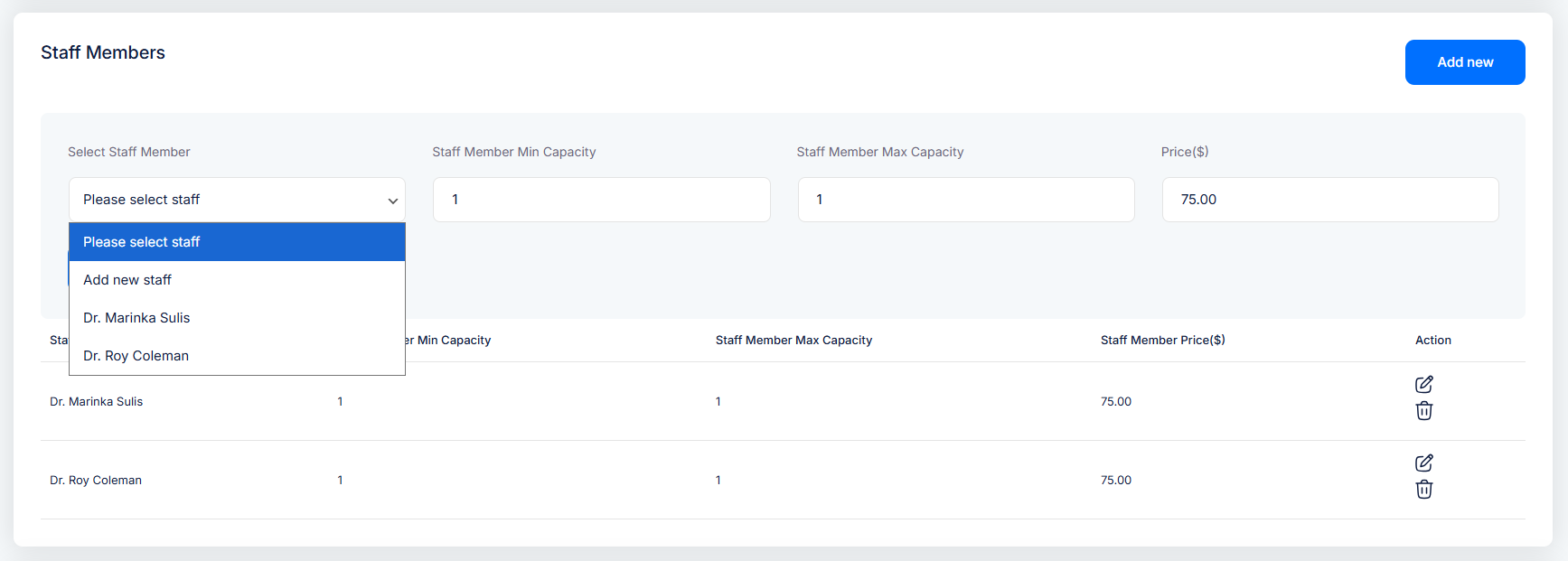
Staff Member Name — Add New Staff or Select Staff from available for the service.
Staff Member Min Capacity — Minimum number of participants this staff can serve.
Staff Member Max Capacity — Maximum number of participants the staff member can handle.
Staff Member Price — Price that applies when this staff member is booked.
When assigning staff to a service: you can add one or more staff members, each with their own minimum and maximum capacity and personalized pricing. This allows for tailored service experiences and accurate booking limits.
Advanced Booking Rules
Minimum Time Required Before Booking – Define how far in advance a customer must book.
Minimum Time Required Before Cancelling – Define how far in advance a customer must cancel.
Minimum Time Required Before Rescheduling – Define how far in advance a customer must reschedule.
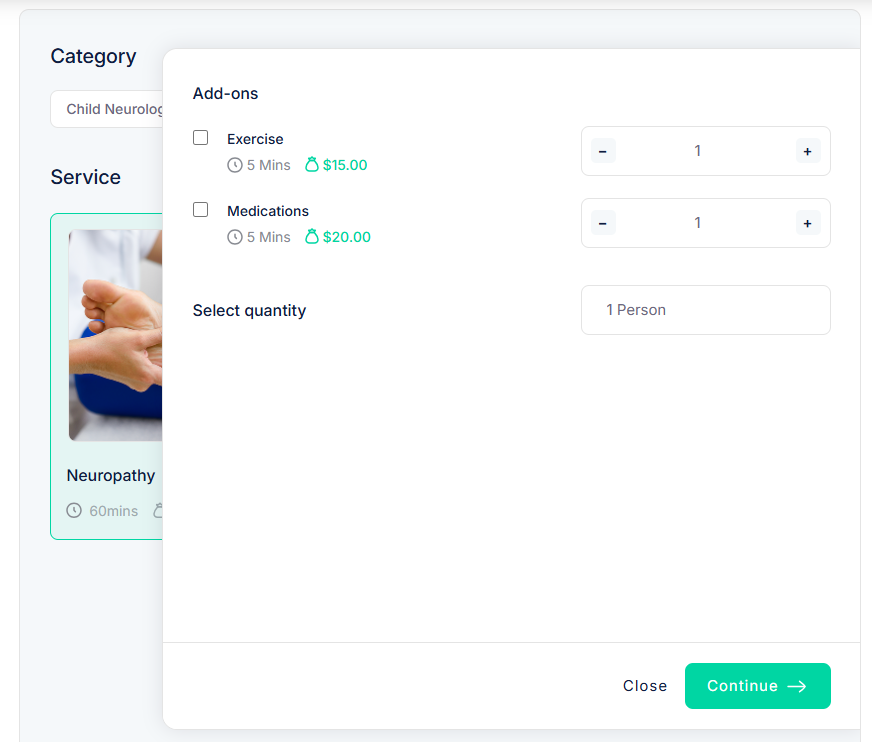
When a customer selects a service, the form displays related sub-services along with the option to specify the number of persons. This interactive step helps users fine-tune their booking by choosing exactly what they need and how many people it’s for.
How Services Appear on the Frontend
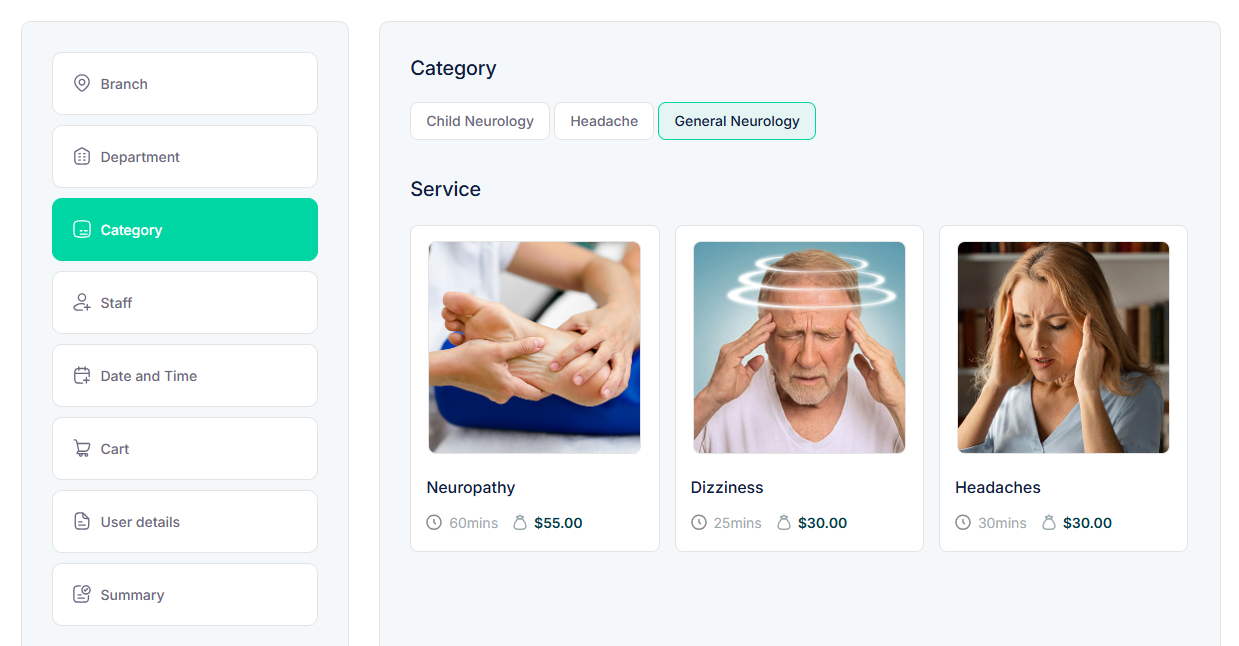
When a customer selects a service, the form displays related sub-services along with the option to specify the number of persons. This interactive step helps users fine-tune their booking by choosing exactly what they need and how many people it’s for.